> ## Documentation Index
> Fetch the complete documentation index at: https://docs.valmi.io/llms.txt
> Use this file to discover all available pages before exploring further.
# Gong
> Gong is a sales visibility tool that helps you achieve revenue goals by providing real-time insights into your sales team’s activities.
## Introduction
[Gong](https://www.gong.io/) revenue platform can be enriched with customer data, including Deals, Accounts and Leads etc ,from your data warehouse. This guide will help you set up a connection between your data warehouse and Gong.
## Gong Configuration
To use the CRM API through valmi.io, you need to create an API key. To create an API key, follow the steps below:
* Go to `Company Settings` and Choose `API` under Ecosystem Group. If you are already logged in, You can also try with this url. `https://us-68970.app.gong.io/company/api-authentication?currentTab=MY_API_TAB`
* Click on `Get API Key` button.
* Keep the `Access Key` and `Access Key Secret` handy. You will need these to configure the Gong connection on valmi.io.
Additionally, to use the CRM API, you need a `Generic CRM` integrated in Gong, instead of the SaaS integrations. To create a Generic CRM, follow the steps below:
* The following http Query needs to be executed to create a Generic CRM. Use the `access_key` and `access_key_secret` copied above to generate the Basic Auth header. Please refer to `https://us-68970.app.gong.io/settings/api/documentation#put-/v2/crm/integrations` to register a Generic CRM integration.
```http theme={null}
curl --location --request PUT 'https://us-68970.api.gong.io/v2/crm/integrations?clientRequestId=123433&integrationId=7824728691807007240' \
--header 'Authorization: Basic TkM1SVdfBZN0tJNEpXRjVXTTdQRjJTUTdVR0ZGRUVETkM6ZXlKaGJHY2lPaUpJVXpJMU5pSjkuZXlKbGVIQWlPakl3TURFek1USTNOemNzSW1GalkyVnpjMHRsZVNJNklrNUROVWxRV1RkTFNUUktWMFkxVjAwM1VFWXlVMUUzVlVkR1JrVkZSRTVESW4wLkdkdfaSWxNcVNGOWZsZUdWMlB4OF9aYXdfdfiRXBJdm5TcVF3M1Z0N1lpYzhadG8=' \
--header 'Content-Type: application/json'
--data-raw '{
"ownerEmail": "j.appleseed@valmi.io",
"name": "Valmi Gong Sandbox"
}'
```
Once the Generic CRM is registered, we are ready to create a Gong connection on valmi.io.
## Creating a Gong Connection on valmi.io
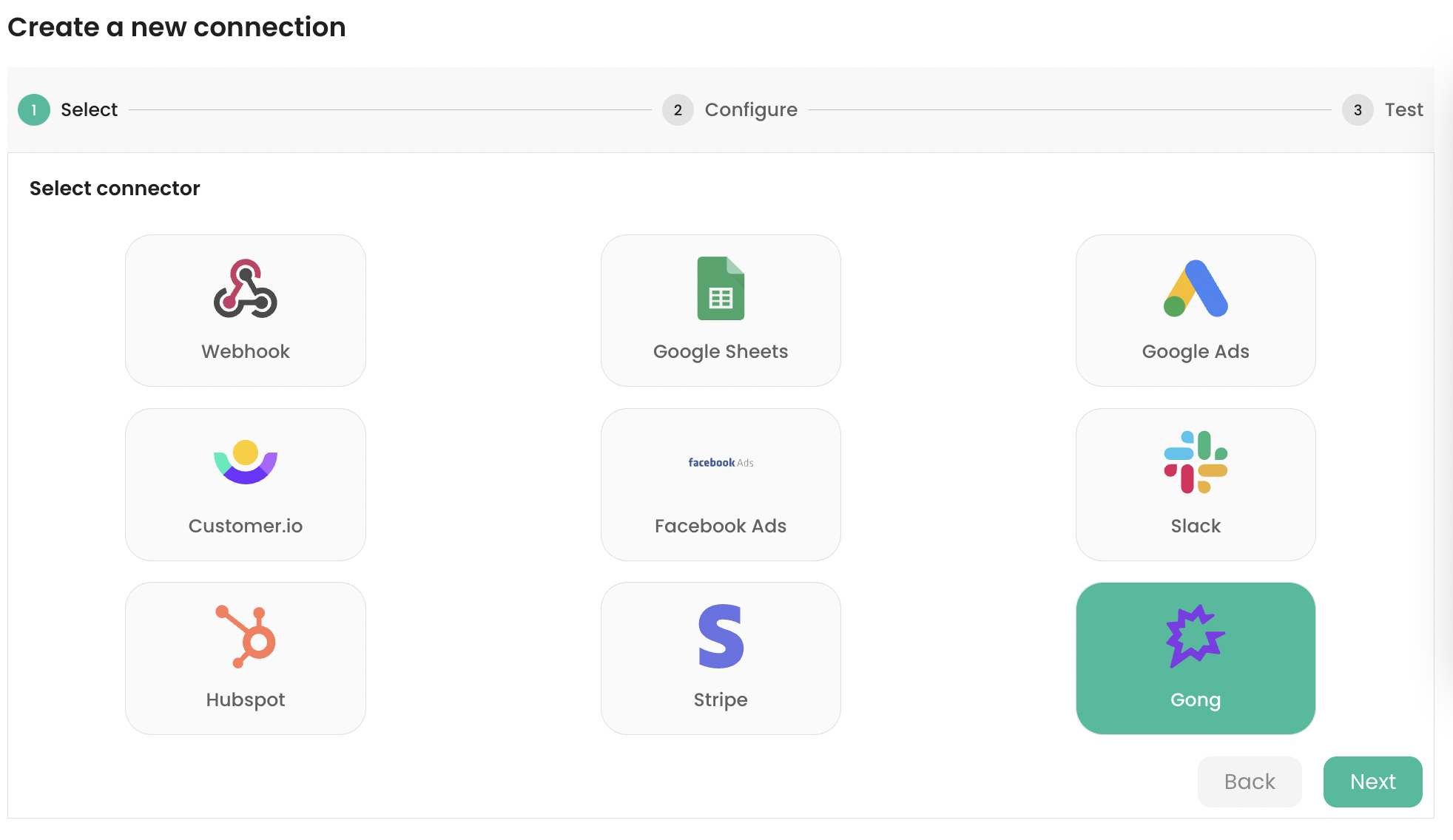
Go to destinations on [valmi.io](https://cloud.valmi.io) and create a new destination. Select `Gong` as the destination.
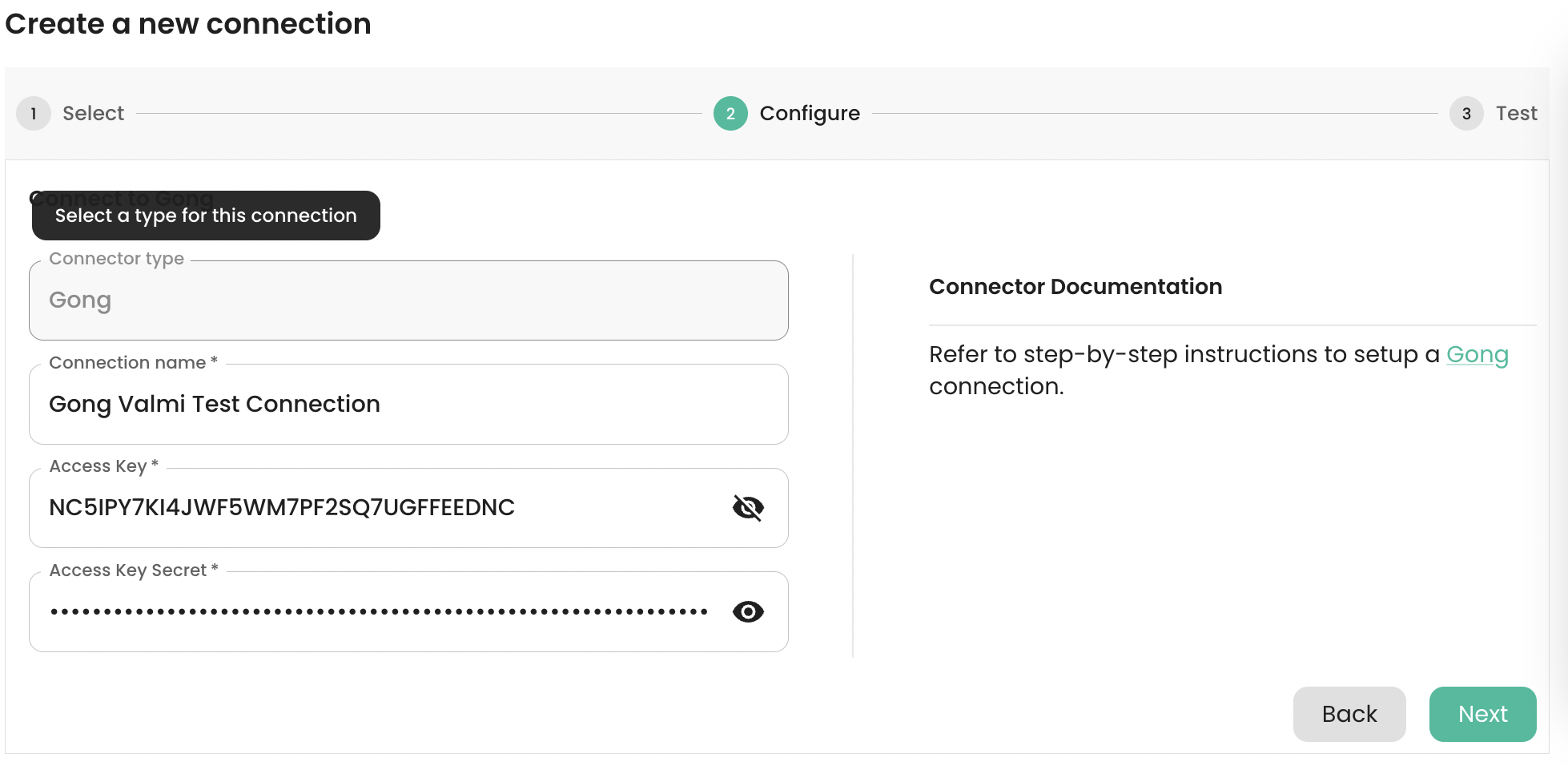
 On the next page, enter the name of the connection and paste the access\_key`and`access\_key\_secret\` generated in the steps above. The picture below shows Gong secrets entered into the text fields. Click on the Next button to connect to the Gong API, test the connection, and create it.
 ## Setting up a Sync
1. ### Supported Destination Modes
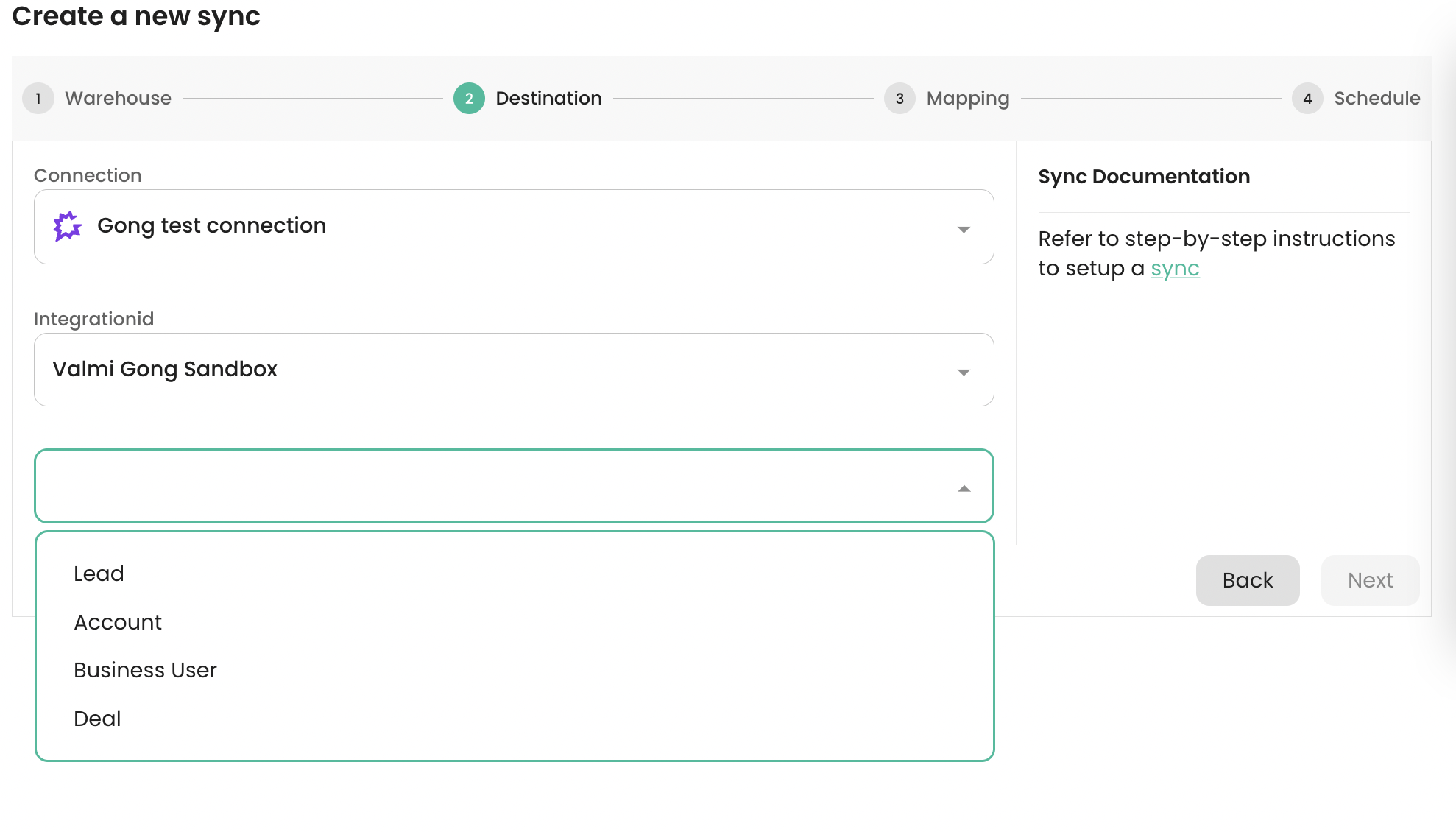
Gong supports the following objects. The following table displays the destination sync modes supported for each of the object. Please refer to the [Destination Sync Modes](/concepts/syncs#destination-sync-modes) for more information on the different destination modes.
| Gong Object | Upsert | Update |
| :------------- | :----- | :----- |
| LEAD | ✅ | ✅ |
| ACCOUNT | ✅ | ✅ |
| BUSINESS\_USER | ✅ | ✅ |
| DEAL | ✅ | ✅ |
The picture shows the list of Gong objects supported by valmi.io.
## Setting up a Sync
1. ### Supported Destination Modes
Gong supports the following objects. The following table displays the destination sync modes supported for each of the object. Please refer to the [Destination Sync Modes](/concepts/syncs#destination-sync-modes) for more information on the different destination modes.
| Gong Object | Upsert | Update |
| :------------- | :----- | :----- |
| LEAD | ✅ | ✅ |
| ACCOUNT | ✅ | ✅ |
| BUSINESS\_USER | ✅ | ✅ |
| DEAL | ✅ | ✅ |
The picture shows the list of Gong objects supported by valmi.io.
 2. ### Mapping Source Columns to Destination Fields
While creating a Sync on valmi.io, you can select a source table and then you can choose the previously created Gong connection as the destination. One of the objects supported by Gong can be selected as the destination object.
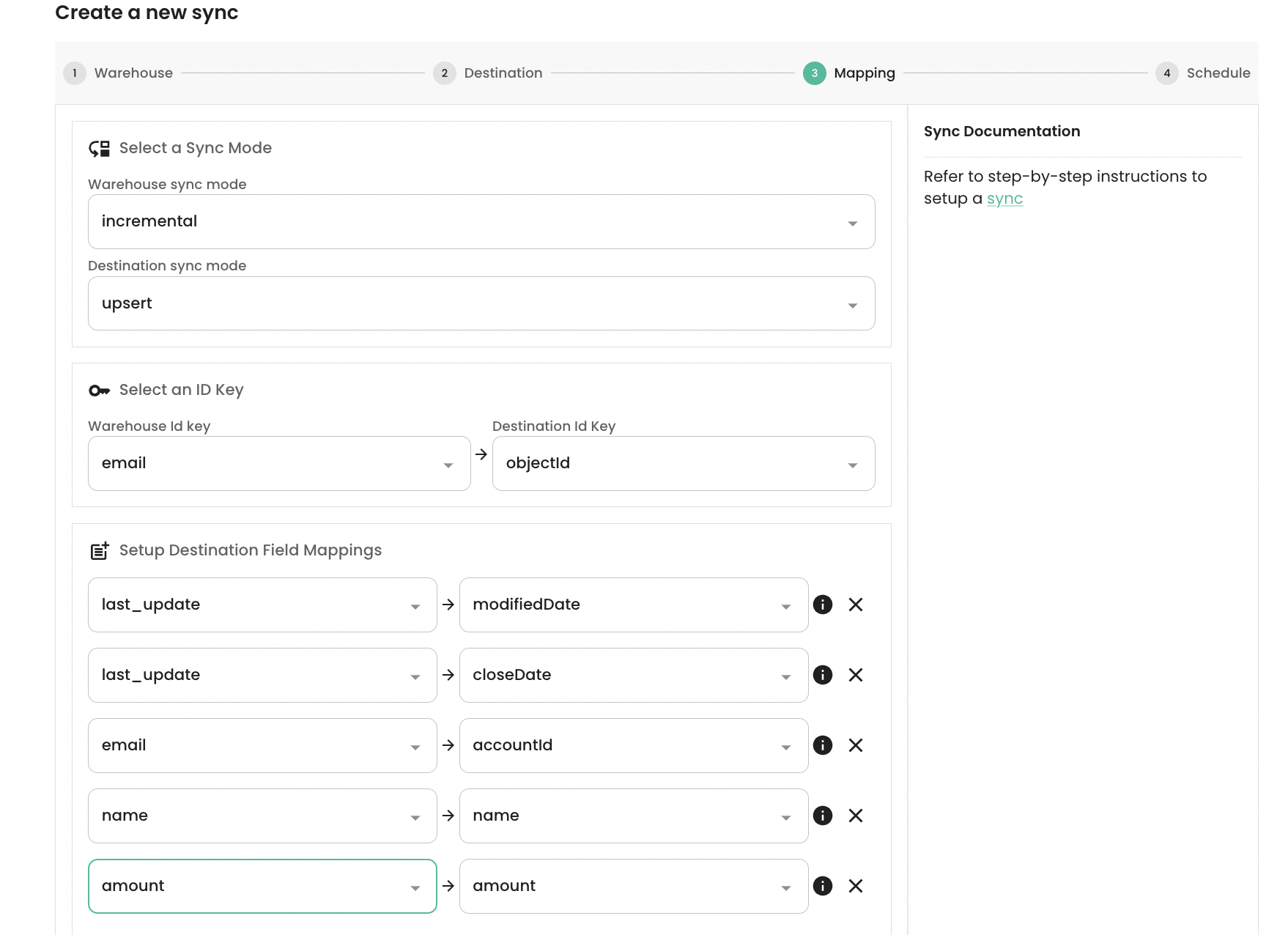
We have chosen the `DEAL` object for this example. The next screen lets the user map the source columns onto the fields of the Gong object. Fields such as `objectId` and `modifiedDate` are mandatory. The picture below shows that we have selected `Upsert` destination sync mode. `email` has been selected as the Primary Key for the Warehouse source. The source fields `last_update`, `email`, `name`, `amount`, `last_update` have been mapped to the destination fields `modifiedDate`, `accountId`, `name`, `amount`, `closeDate` respectively.
2. ### Mapping Source Columns to Destination Fields
While creating a Sync on valmi.io, you can select a source table and then you can choose the previously created Gong connection as the destination. One of the objects supported by Gong can be selected as the destination object.
We have chosen the `DEAL` object for this example. The next screen lets the user map the source columns onto the fields of the Gong object. Fields such as `objectId` and `modifiedDate` are mandatory. The picture below shows that we have selected `Upsert` destination sync mode. `email` has been selected as the Primary Key for the Warehouse source. The source fields `last_update`, `email`, `name`, `amount`, `last_update` have been mapped to the destination fields `modifiedDate`, `accountId`, `name`, `amount`, `closeDate` respectively.
 In the next screen, you can choose a schedule for the sync and finally create the sync.
3. ### Verifying data loaded into Gong
You can confirm the number of records sent to Gong API from the Sync Runs Page.
In the next screen, you can choose a schedule for the sync and finally create the sync.
3. ### Verifying data loaded into Gong
You can confirm the number of records sent to Gong API from the Sync Runs Page.
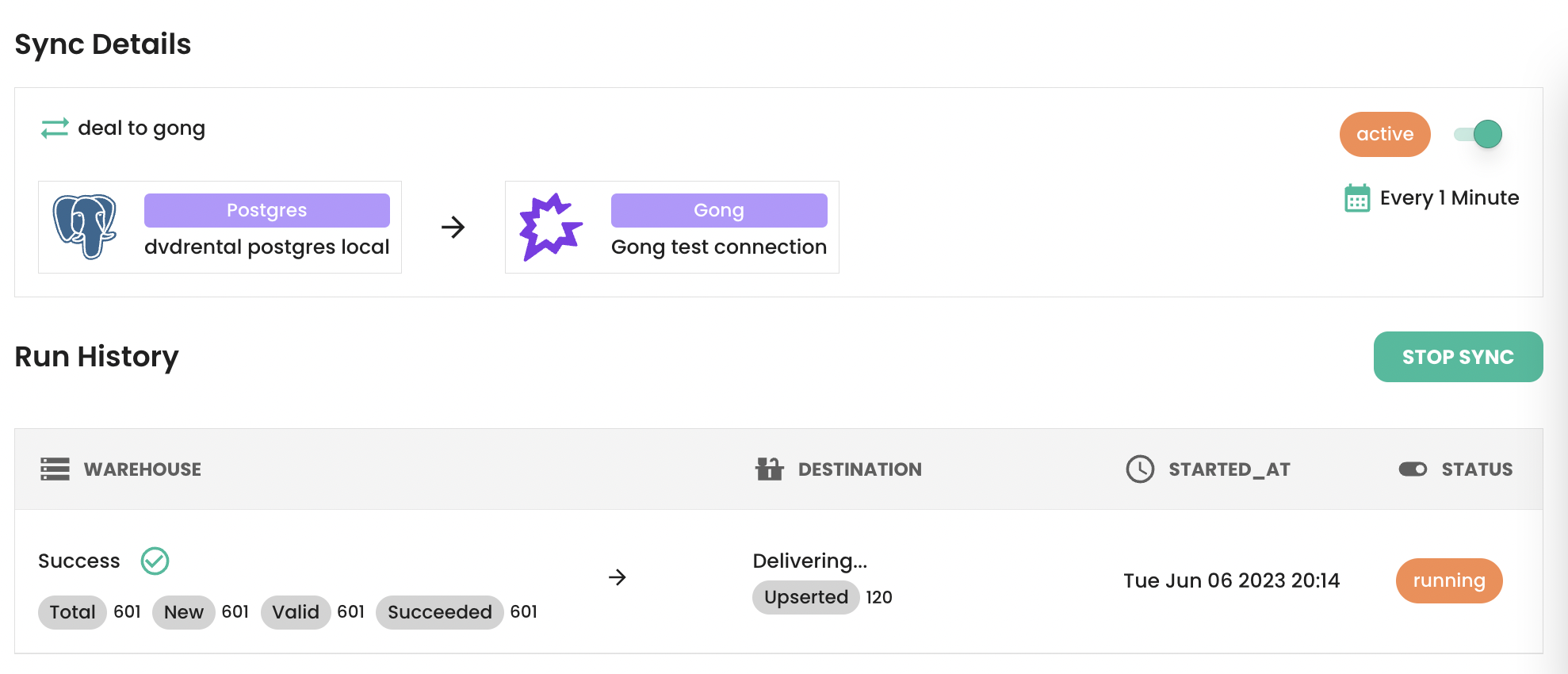 You can also confirm the data loaded into Gong from the Gong UI. We are currently using an API call per record. The Gong API internally used within the valmi.io connector is documented [here](https://us-68970.app.gong.io/settings/api/documentation#post-/v2/crm/entities) . It can be easily changed to batch API. Please contact us to enable batch API usage.