> ## Documentation Index
> Fetch the complete documentation index at: https://docs.valmi.io/llms.txt
> Use this file to discover all available pages before exploring further.
# Customize Invoices and Taxes
> Configure tax rates, customize invoice templates, and generate invoices
## Customize Invoices and Taxes
This guide walks you through configuring tax rates for your customers, customizing invoice templates to match your brand, and generating invoices. You'll set up taxes, create a custom invoice template using markdown, and learn how to view and manage generated invoices.
## Configure Tax Rates
Navigate to **Billing > Taxes** in the left sidebar. This page shows all tax configurations for your accounts and subscriptions.
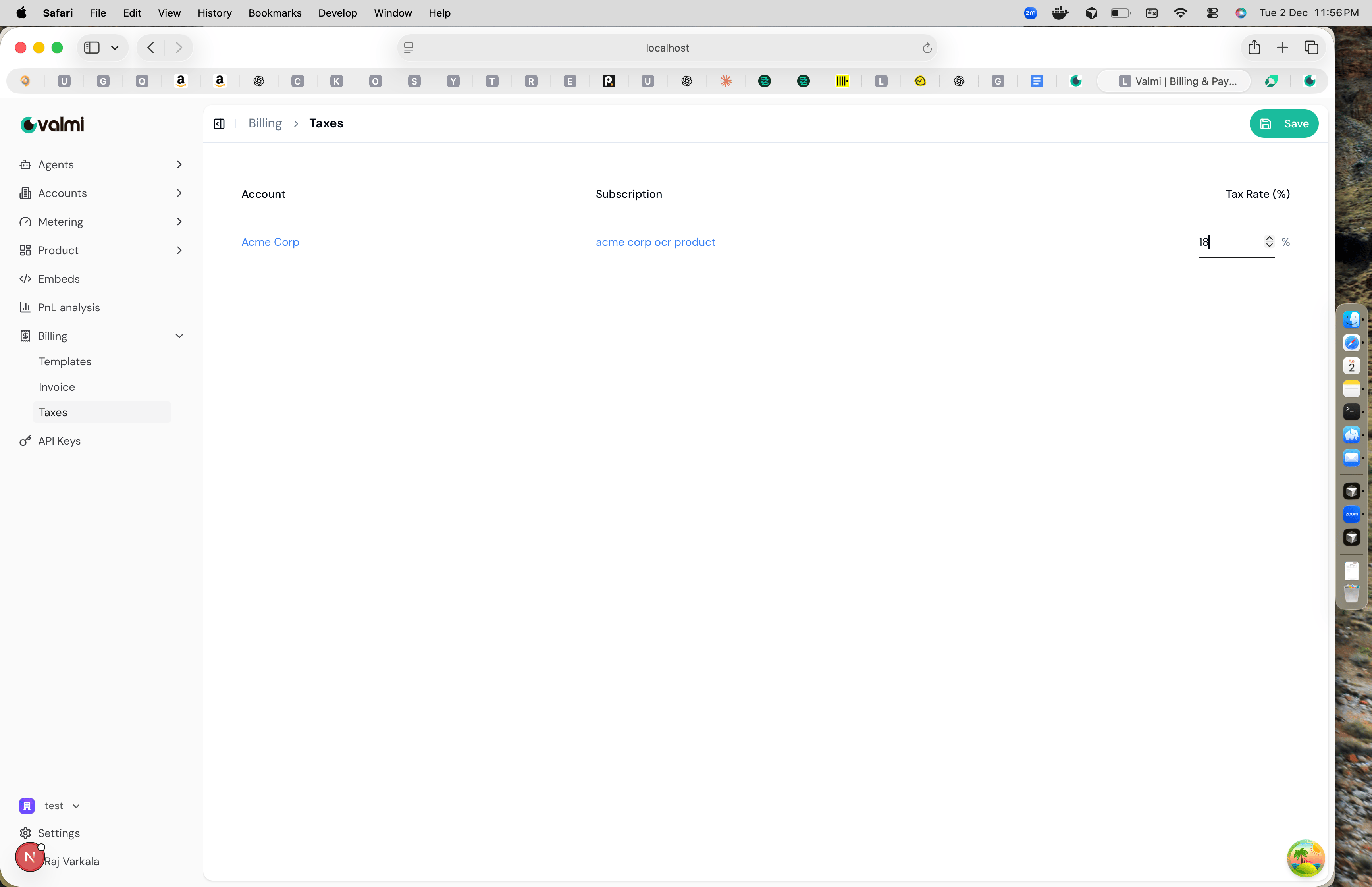 Each row represents a tax configuration for a specific account and subscription. The tax rate is displayed as a percentage. To modify a tax rate, click on the input field and enter the new percentage value, or use the up and down arrows to adjust it. For example, you might set an 18% tax rate for "Acme Corp" on their "acme corp ocr product" subscription.
Click **Save** in the top right corner when you're done making changes. The tax rates you configure here will automatically be applied when invoices are generated.
## Customize Invoice Templates
Navigate to **Billing > Templates** to create or edit invoice templates. Invoice templates use markdown format, making it easy to customize the layout and styling of your invoices.
Click **Create Template** or edit an existing template. The template editor is split into two panels: the left side shows the markdown editor, and the right side shows a live preview of how the invoice will look.
Each row represents a tax configuration for a specific account and subscription. The tax rate is displayed as a percentage. To modify a tax rate, click on the input field and enter the new percentage value, or use the up and down arrows to adjust it. For example, you might set an 18% tax rate for "Acme Corp" on their "acme corp ocr product" subscription.
Click **Save** in the top right corner when you're done making changes. The tax rates you configure here will automatically be applied when invoices are generated.
## Customize Invoice Templates
Navigate to **Billing > Templates** to create or edit invoice templates. Invoice templates use markdown format, making it easy to customize the layout and styling of your invoices.
Click **Create Template** or edit an existing template. The template editor is split into two panels: the left side shows the markdown editor, and the right side shows a live preview of how the invoice will look.
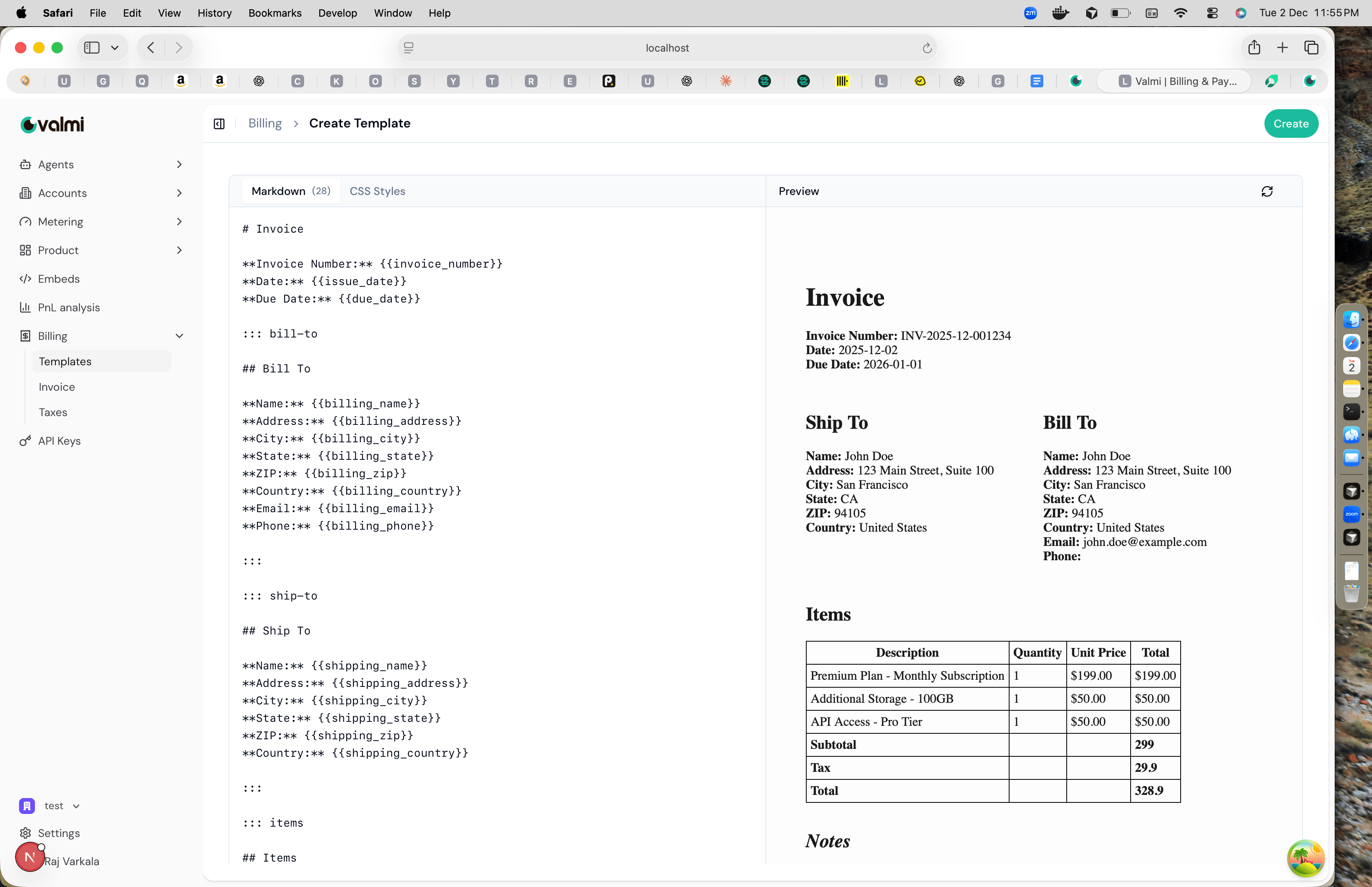 The markdown editor has two tabs: **Markdown** for the template content and **CSS Styles** for custom styling. In the markdown, you can use placeholders like `{{invoice_number}}`, `{{billing_name}}`, `{{issue_date}}`, and `{{due_date}}` to insert dynamic data into your invoices.
You can also use custom block delimiters like `::: bill-to` and `::: ship-to` to create sections for billing and shipping addresses. The `::: items` block is used for the line items table. As you type in the markdown editor, the preview panel updates in real-time to show how the invoice will appear with sample data.
Once you're satisfied with your template, click **Create** to save it. The template will be used when generating invoices.
## Generate and View Invoices
Navigate to **Billing > Invoice** to view bill runs and invoice history. A bill run is a process that generates invoices for a specific billing period.
To create a new bill run, click the **"+ Create"** button in the top right. A modal will open where you can configure the bill run details.
The markdown editor has two tabs: **Markdown** for the template content and **CSS Styles** for custom styling. In the markdown, you can use placeholders like `{{invoice_number}}`, `{{billing_name}}`, `{{issue_date}}`, and `{{due_date}}` to insert dynamic data into your invoices.
You can also use custom block delimiters like `::: bill-to` and `::: ship-to` to create sections for billing and shipping addresses. The `::: items` block is used for the line items table. As you type in the markdown editor, the preview panel updates in real-time to show how the invoice will appear with sample data.
Once you're satisfied with your template, click **Create** to save it. The template will be used when generating invoices.
## Generate and View Invoices
Navigate to **Billing > Invoice** to view bill runs and invoice history. A bill run is a process that generates invoices for a specific billing period.
To create a new bill run, click the **"+ Create"** button in the top right. A modal will open where you can configure the bill run details.
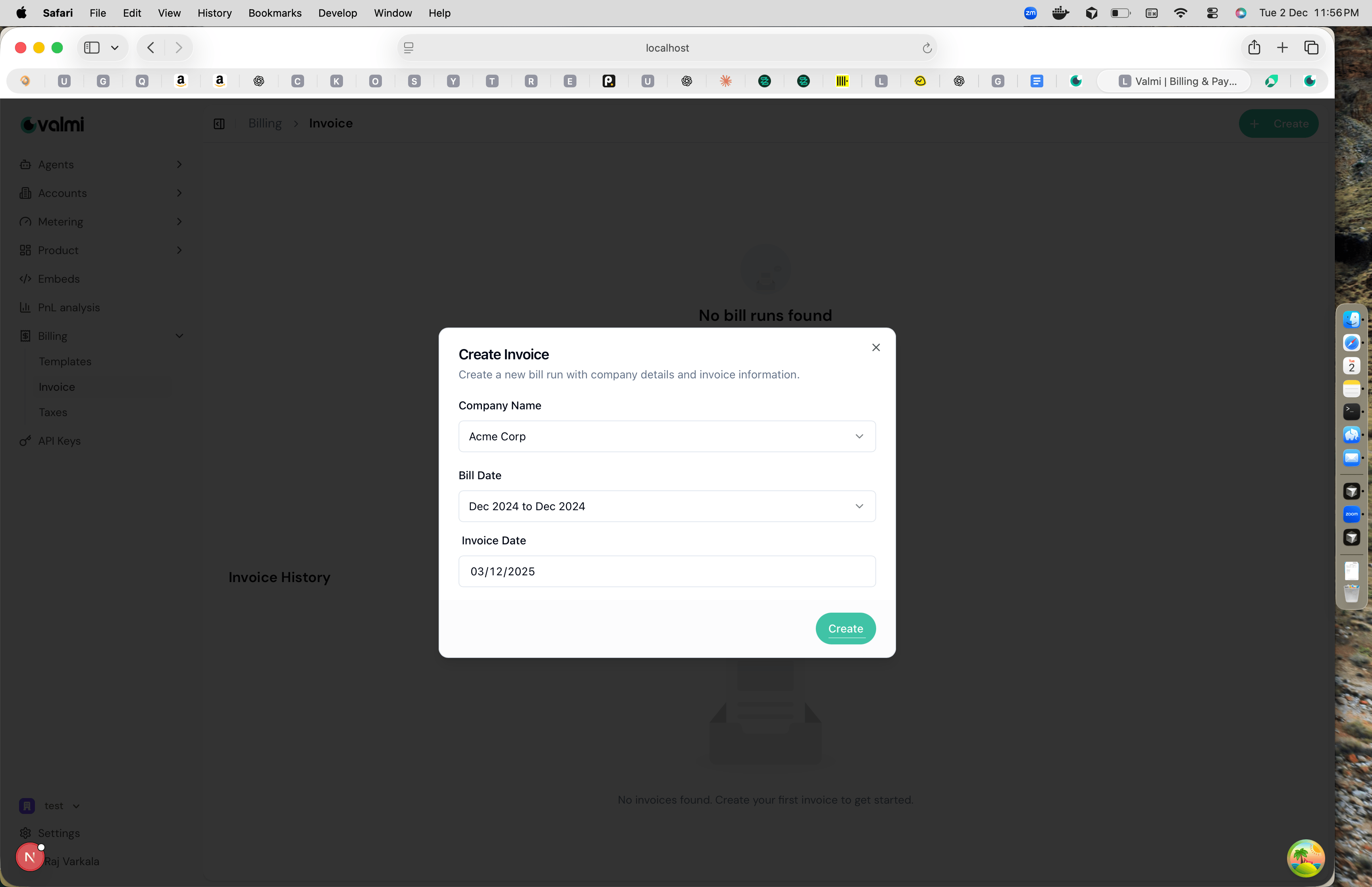 Select the company name from the dropdown, choose the bill date range (the period you're billing for), and set the invoice date. Click **Create** to generate the bill run. The bill run will appear in the "Bill Runs" section with a status like "Pending" while it's being processed.
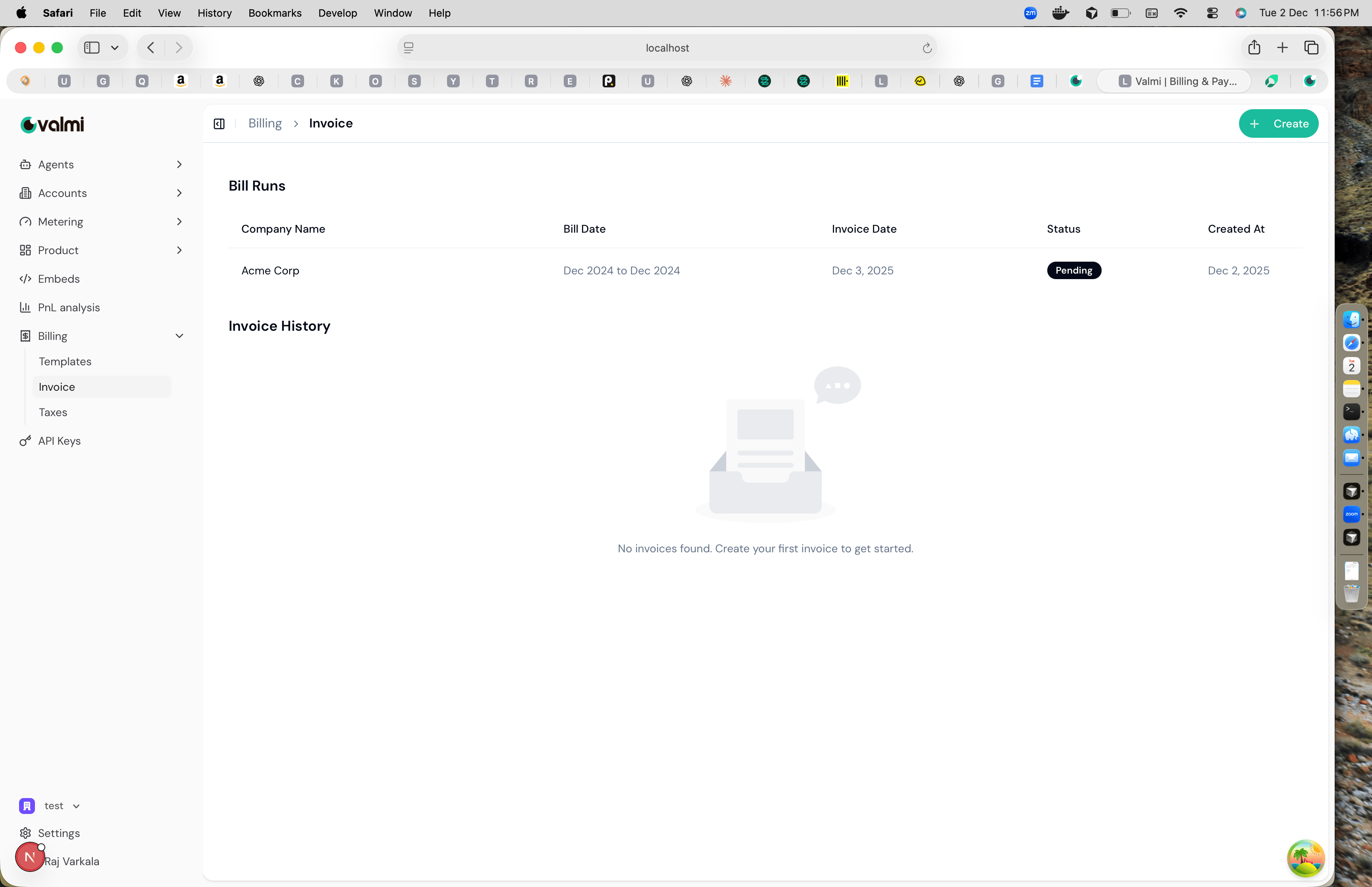 Once a bill run is complete, the generated invoices will appear in the "Invoice History" section below. You can view each invoice, download it as a PDF, and see all the details including line items, taxes, and totals.
If you need to modify an invoice or create a custom bill run, you can issue a new bill run with different parameters. This allows you to adjust billing periods, update charges, or regenerate invoices as needed.
Once a bill run is complete, the generated invoices will appear in the "Invoice History" section below. You can view each invoice, download it as a PDF, and see all the details including line items, taxes, and totals.
If you need to modify an invoice or create a custom bill run, you can issue a new bill run with different parameters. This allows you to adjust billing periods, update charges, or regenerate invoices as needed.